
Experiments in the Console
The Experiments page in the console is the primary surface for the day-to-day work of running bandit experiments. From here you can create new experiments, monitor active ones, drill into per-arm performance, and tweak feature gates without touching the API.
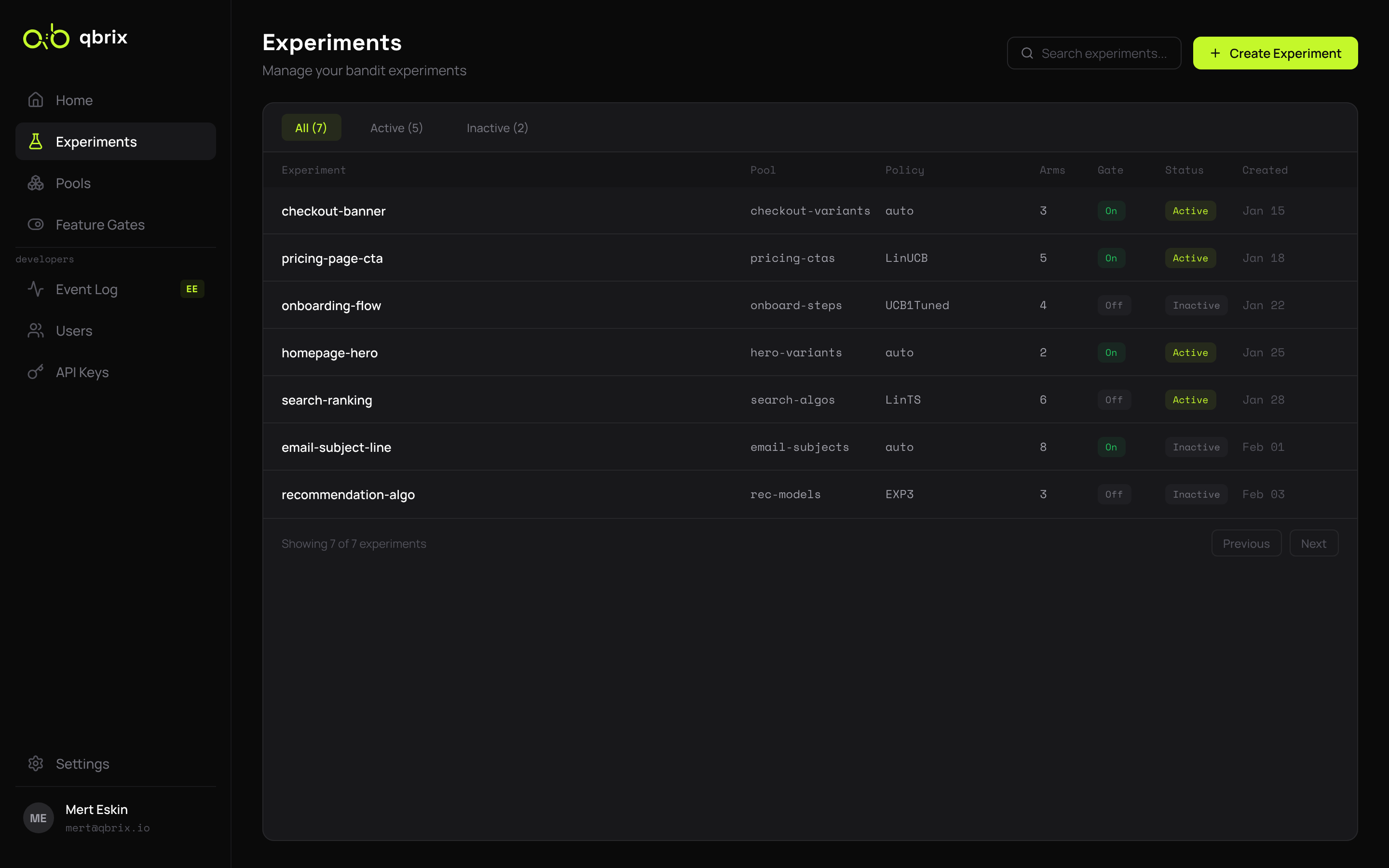
The List View
The experiments table shows every experiment in your workspace with a few columns:
- Experiment — the name you gave it.
- Pool — which pool of arms it's testing.
- Policy — the bandit algorithm.
autofor meta-bandits, otherwise the concrete policy class (e.g.BetaTSPolicy). - Arms — the number of variants in the pool.
- Gate —
Onif a feature gate is attached and enabled. - Status —
ActiveorInactive. Inactive experiments stop serving the bandit until you re-enable them. - Created — creation timestamp.
Use the filter tabs (All / Active / Inactive) and the search box to narrow the list.
Creating an Experiment
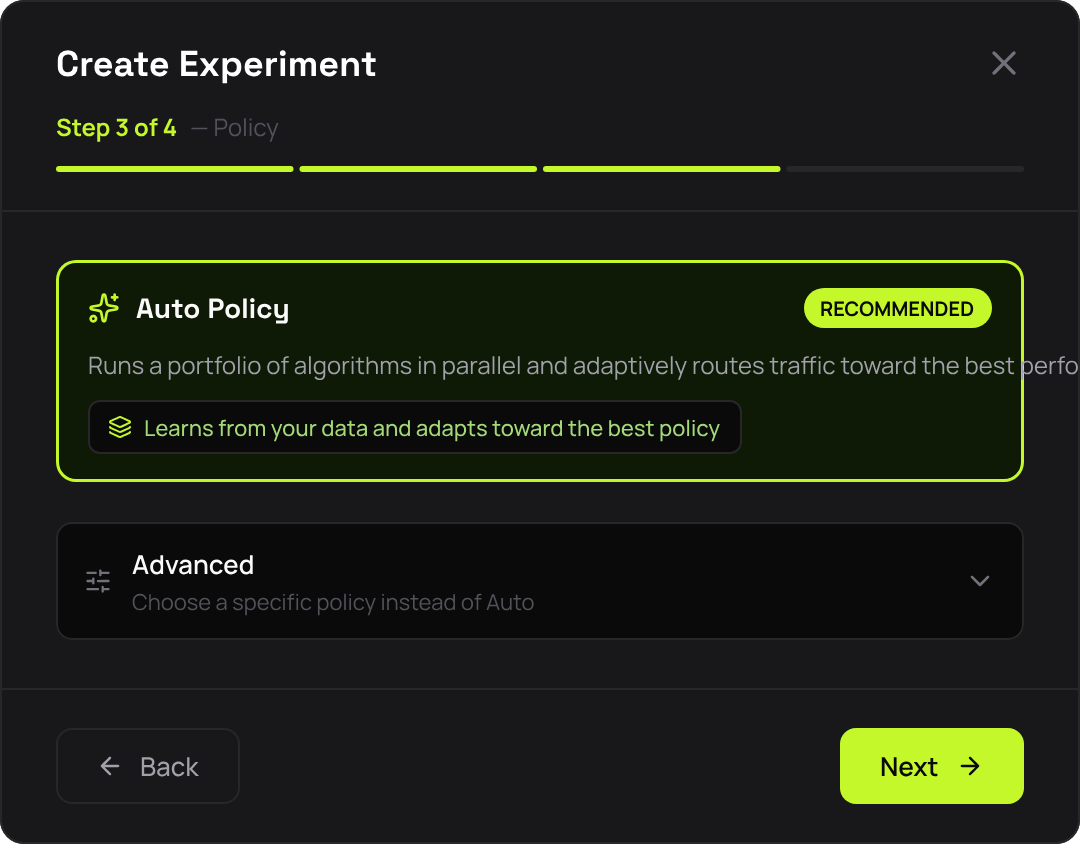
Click Create Experiment in the top right. The dialog walks you through four steps:
- Basics — Name and pool selection.
- Reward Type — Binary, Bounded, or Continuous. This determines which policies are eligible.
- Policy —
autois the default recommendation. The advanced picker lets you pick a specific algorithm. - Feature Gate (optional) — Rollout %, default arm, targeting rules, and schedule.
Tip
For most use cases, sticking with the default auto policy is the right call — qbrix will figure out which algorithm works best on your data. See the Auto Policy page for details.
The Detail View
Clicking an experiment opens its detail page, which shows:
- Live arm-selection share — what fraction of recent traffic each arm is receiving.
- Per-arm reward stats — pulls, average reward, conversion rate.
- Policy parameters — the current state (Beta priors, weight vectors, etc.).
- Feature gate config — rollout, rules, schedule, and a toggle to enable/disable.
- Audit trail — who created it, when it was last updated.
Editing & Disabling
- Pause an experiment by toggling Status to Inactive. Selections fall through to the gate's default arm (or error out if no gate is configured).
- Update the gate at any time — rollout %, rules, and schedule are editable without touching the experiment itself.
- Delete an experiment from the detail view's overflow menu. This is permanent; selection requests for the deleted ID will 404.
Next Steps
- Console Event Log — see every selection and feedback event in real time
- Feature Gates — the gate model in depth